Showing posts with label 2018. Show all posts

Friday, 7 December 2018

2018 Assistance and Access Bill

This is a cross post from my less technical blog at https://abeath.blog

Passed the Senate last night, rushed through in a day by a bunch of politicians that probably haven't read any of the submissions or listened to anyone in IT about the impact on privacy these encryption changes will make. Man it makes my blood boil. There was an article on Business Insider about it quoting a software consultant in Melbourne Tom Sulston and he summed it up really well:
1. The bill is bad for security because encryption keeps us safe from criminals. This bill will make it easier for them to hack us.
2: The bill is bad for jobs because software companies will choose not to work in Australia, as this bill is fundamentally incompatible with GDPR.
3: The bill is bad for workers, as it opens up all sorts of penalties if we conscientiously object to being drafted into the security services.
4: The bill is bad for democracy as it will make it easier for a sitting government to access the private communications of journalists, opposition politicians, unions, businesses, et al.
5: The bill is bad for the economy because global consumers will choose digital services that come from countries that are not threatened by Australian legislation.
There are clearly plenty more reasons why the bill is terrible, but these are some big, big problems.
https://twitter.com/tomsulston - see his feed for more stuff
I read this and can't help but agree. If I'm a criminal I would be super happy about this decision. You can be damn sure those guys will find open source software that isn't screwed the Australian Government and lock their shit up tight while the rest of us have defective software and devices allowing all and sundry to mess with our stuff.
This is a sad day indeed for Australia and we are rightfully the laughing stock of the technical world. What is worse is that this Bill was passed in order to stop another Bill being defeated (and this Bill is to get kids of Nauru for medical treatment. I'm not going to comment on that - I'm cranky enough with this other thing). So stupid politics screws the pooch royally here and there's only the House left to amend it.
Saints preserve us (I sound like little old Southerner). I am so disappointed in this decision and despite having written to my local member (I missed out on a submission to the stupid Bill thing) on several occasions I am very unhappy with this result. I'm also pissed at the behaviour of our elected officials trivialising something like this into name calling and bullshit behaviour when it is so important. Telling the opposition leader he is a "a clear and present threat to the safety of Australians" while they are looking at the Bill in order to guilt it through is really not good enough. If the Bill and the reasons behind it are solid, then an ad hominem attack like this is unnecessary and paints those elected in a worse light.
And while I'm on the soap box law enforcement needs to take a good look at themselves too. They're proposing to weaken encryption for everyone in order to catch a few people. Guess what idiots? More people will be negatively affected by this than the positive outcomes. You're weakening my encryption, my wife's and my kids to catch criminals. How about investing in some good old fashioned police work and updating the way you pursue criminals rather than screwing up things for everyone? I wonder if they have even looked carefully out the outcomes of this legislation past the echo chamber they live in. It's very disappointing and once again I'm considering moving to the moon.
Update:
I have to add to this after reading some more stuff about the Bill online. There were 173 amendments put forward to this Bill hours before it passed. The Senate were asked to consider 173 different amendments. I can't highlight this enough. 173 is a shite load. Surely this is an example of how flawed the bill was? Here is one of the Senator's takes on it:
It's fine, they're only asking for 173 amendments to be moved together. 173. Amendments most of us only saw an hour or two ago. 173.
It's a complete shitshow #AAbill #encryption #Auspol
— Senator Jordon Steele-John (@Jordonsteele) December 6, 2018
Twitter....
Come on! Seriously! Further to this, I've looked at the Bill and I'm gravely concerned that the current accreditation we have to have to work with the Government departments might be incompatible with this Bill and I could go to gaol for denying the Government fucking up our security in order to have the accreditation to work with the same Government. Is that not completely stupid? Welcome to Australia....
Rant over.

Tuesday, 4 December 2018

A month with the 2017 MacBook Pro

I reviewed the new MacBooks awhile ago and I wasn't all that impressed by them, in particular I was critical of the keyboard and the trackpad. Over the last month, however, I've been using one full time and I've come to accept the keyboard and even enjoy using the big, super sensitive and useful trackpad. So here's what we're talking about:

Latest version of macOS, and a pretty solid machine spec to boot. I have to say the Retina display is really nice. I can happily look at it all day without any eye strain issues or headaches as a result. The machine itself is a silver 13" MacBook, no touch bar or any of that silliness and was around $2000, plus accessories. I managed to get a USB-C adaptor with HDMI, USB3 and USB-C charging and access ports for this laptop. It's pretty cool actually but I do have to plug it into the computer and then reboot it to get the HDMI to work. This gives me essentially a dock to use, with my Time Machine backup drive, USB to ethernet adaptor (our Wi-Fi can be sketchy) and a USB-3 hub to give me some extra ports. Having 2 USB-C and the headphone port only has been a challenge to work with. I have so many adaptors that aren't compatible anymore! AAARGH!

All the specs can be found here: https://www.apple.com/au/macbook-pro/specs/ as well as details of the machine itself.


Currently I'm using several laptops for various purposes - my beloved Lenovo T430, a Lenovo E560 (for development purposes) and a HP "Sleekbook". They are running Windows 7, Windows 10 and Linux Mint respectively and give me a pretty good comparison across all devices. The MacBook Pro is better than all of them.

Firstly, macOS is great. I love it - all the power of the *nix operating systems, with a polished desktop well supported by quality apps. Mint is great, and the polish gets better and better, but macOS still has a solid lead on it. Especially with Time Machine - I love this for backups. It's really tremendous in that respect. Windows 7 and 10 are just... well Windows operating systems. I've come to appreciate Windows 10 for some of its features, but it's still able to piss me off with it's restarts at inopportune times and various other behaviours that shits me. Additionally, I hate not having a native terminal to manage my Linux servers with. You may not experience this, but I surely do.

The keyboard, while not the best in class, does have backlit illumination that just works. Neither of the Lenovo's does this (the T430 has the top mounted light which has been handy) and the Sleekbook works most of the time... but the Mac works every time. As soon as I touch the keyboard, on come the lights. I love it. Just perfect. Not as good to type on as the Lenovo's though. When it comes time to write a million word thesis, I'll be reaching for those machines that's for sure, but for day to day work (including writing the occasional several thousand word report) the MacBook will do the job.

Monitor is clearly the best on the MacBook. Second is the Sleekbook, then the E560 and finally the T430. The Retina display is lovely to behold and has such rich colours... ah it's very nice indeed.

Specs are good, but really - an i7 or an i5 is going to give me the same results for the stuff I'm doing. No hardcore processing work, no games (I have an Xbox for that) and relatively few heavy work loads on any machine. 8GB of RAM is a minimum spec for me now - that's a requirement for operation I think. The E560 has 16GB and I managed to get an extra 500GB SSD into it too, but it's a much bigger beastie than these other little machines.

I've adapted to using Outlook 2019 for Mac and flit between that, Apple Mail and Calendar. I like having the separate app for Calendar open on another screen to keep abreast of what's coming up.

Overall it's been a positive experience - especially with the integration between my MacBook, iPad and iPhone. Everything ties together so neatly and I'm now trapped.... doomed to be stuck in the Apple ecosphere. I don't really hate it though - there is a lot to like and I can always use another laptop if I feel the need to bust out of my comfort zone. Traveling with the MacBook has been good to - it's light and easy to maneuver with tonnes of battery life and good sound (for movies in the hotel room). Well worth a purchase if you like Mac and can drive macOS with some degree of confidence. Make sure you buy the adaptor (I think mentioned in a previous post) to really get the most of this great little machine.

Tuesday, 20 November 2018

Office 2019 vs Office 2016 - a comparison

So with my new Mac has come a new suite of productivity tools from Microsoft - Office 2019. Yes I was indeed reluctant to try this out, but here it is. First, a couple of comparisons between the ribbons in Outlook:


Screen Shot 2018-11-20 at 1.27.34 pm
Outlook 2019 Ribbon (Mac)


Screen Shot 2018-11-20 at 1.30.21 pm
Outlook 2016 Ribbon (PC)

And the Calendar part of Outlook:
Screen Shot 2018-11-20 at 1.28.48 pm
Outlook Calendar 2019

Screen Shot 2018-11-20 at 1.30.33 pm
Outlook Calendar 2016

Fundamentally it all handles the same, but the UI change is quite marked. In fact, this is reflected across all the suite - Word, Excel and Powerpoint all have tidier interfaces on the Mac. Whether this is reflective of the difference in styles between Apple and Microsoft or not I'm unsure about. It's definitely tidier and less busy - this appeals to me. The actual driving of the applications is largely the same.

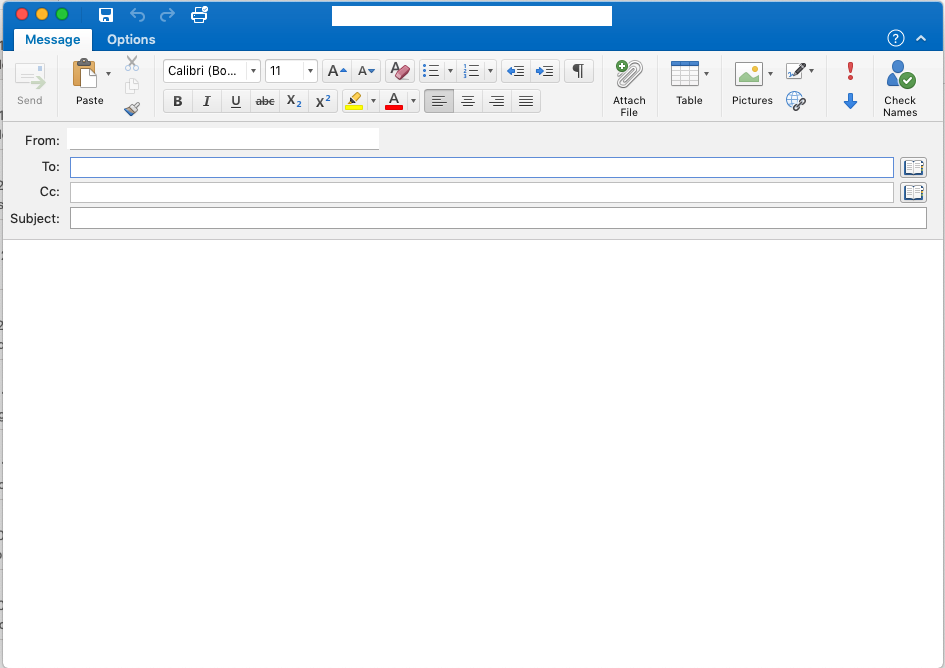
Here is the compose window in a new email:
Screen Shot 2018-11-20 at 1.28.18 pm
New Email Outlook 2019

It's all pretty much the same, but you can see a more clean approach has been taken with the newer applications. I like it. I don't like Outlook as a rule, but I like this version of it better than previous versions.
The proof is in the utility - and both versions of Office are very useful. I'm still bewildered at times by the array of things you can do in Excel - it's one very full featured piece of software, and I probably will never use all of the stuff even in Word - which is probably why my preference is a simpler text editor like Pages.

Here's a snippet from Excel and you'll note that next to the green "Maximise" button in the top left hand corner is what looks like a little notebook - this is the File menu where new file etc all live:

Screen Shot 2018-11-20 at 1.40.39 pm
Excel 2019

Again it's a slightly cleaner interface than 2016, but everything is there. With all the "File" activities hidden in that new button, there's nothing really missed out on. An Excel aficionado will probably say there are a million things not there but I'm not that guy.

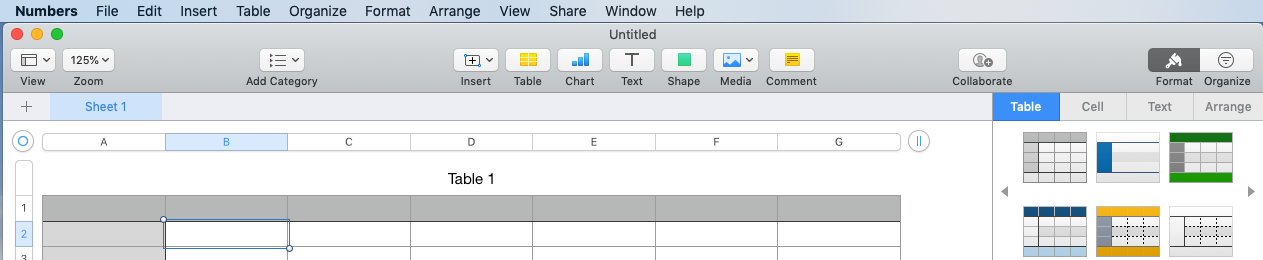
Compare that ribbon to the Numbers ribbon:
Screen Shot 2018-11-20 at 1.43.37 pm
The simplicity of Numbers


It's a big UI (User Interface) difference. Given the rather limited activities I execute in spreadsheets, either one is suitable for my needs. I know that Numbers isn't adequate for some of the guys here at work who use Excel in extraordinary ways, but for the regular punter I think you'll find Numbers to be adequate.
At any rate, I thought you might find this interesting to see a brief comparison between the versions of Office and how different they look on different OS platforms. I can only hope that Microsoft release a version for Linux and I'll compare that one too!
I've cross posted this to my regular blogging account, so if you're interested in my wider range of thoughts check it out: abeath.blog

Tuesday, 2 October 2018

Review: Linux Mint 19 "Tara"

Since I changed jobs and no longer use my big Linux box day to day, it's been harder to find the time to work with Linux, and in particular Mint. I love Mint and I've been delighted to use it for many years now. When I took my work PC home, and fired it up I was poignantly reminded how much I enjoyed working in the Linux desktop world and how I'd missed it. Windows 10 just doesn't compare and even Mac OS X (while very good) still lacked a certain something.

I've been using Mint 18 for some time and enjoyed it, so when I finally caught up to checking out "Tara" I was very interested to see what the go is. Here is the link to the release blog post about it: https://blog.linuxmint.com/?p=3597 It's a Long Term release (LTS) so it'll be good until 2023. I've found Mint to be updated and looked after for the full term of their LTS releases - something to commend the team on. Now, what to run the test install on?

I managed to get my hands on a 4 year old HP ENVY TouchSmart Ultrabook (or "Sleekbook" 14-k124tx is the model) for this review. It's stats are fairly impressive for an older machine: Intel Core i7-4500U, 8GB RAM, 128GB SSD drive. It has a touch screen, and dual video adaptors (low power Intel and nVidia for the good times), and multi touch mouse pad. This one had a dodgy Windows 7 install on it that kept blue screening, even with a fresh install of Windows 7. I've been running Mint as my primary workstation on it for several days now with nary a worry.

Into the review then:

I booted into the LiveUSB version of Mint for a quick poke around. Everything looked the goods so I chose "Install".

The installation of Mint was flawless - it identified the UEFI nature of the boot system, and asked if I wanted to change it around, or was I happy to blow away the previous install and just go with Mint. I let it get rid of Windows and move through the familiar installation process taking the default options for everything. I like how it is specific about the encryption option for the disk leading to a more secure install.

First boot was not long after and very fast - particularly on this rather lean little machine.

The initial impression was that the presentation of the desktop environment was polished and had the usual, rather plain theme applied. I'm more than happy with this though as I find too much flash gets in the way of doing what I need to. The new crop of desktop backgrounds are lovely - lots of colour and sharp imagery to enjoy. It was very fast too - launching Firefox took mere moments and everything was quick.

I was delighted to see the operating system ask me if I wanted to set up backups when I first tried to run Mint Update. This is a very clever idea and uses a built in wizard to run the flamboyantly named "Backup Tool". Not only will this use rsync to back up one's files, but it will also backup your software selection (and restore both groups of files as required). Given this computer is a test bed and I expect to mess around with it a fair bit, I didn't bother setting it up. The initial update was smooth and a quick reboot got me back into a fully patched machine.

Uh oh though - no wireless! Aargh! This machine has some fairly specialised hardware and requires some third party apps. I've found this to be hit and miss at times in the past, but found it to be no real issue here:

In the background you can see one of the superb "Tara" backgrounds. Everything works now - WiFi and the nVidia drivers as well. I'm not sure if there really is a boost in the graphics as I'm only doing desktop stuff on it (and even then mostly web based activities) so check out a gamer's review for that sort of thing.

Another quick reboot (now up to 3) and good to go. Installed Chromium, nmap and a few other bits and bobs and all good. Mint is effortless to manage apps with - much like Debian and Ubuntu and this is a big part of the reason I like it.

The install base wasn't huge either. On a laptop like this, where a Windows 10 install can smash a 128GB disk in no time, the disk usage looks like this:

You can see that it's only 11GB for the whole install, and applications (and also my imaginative naming scheme for computers!).

With regards to usability and stability - Mint offers the usual round of suspects for desktop productivity - LibreOffice, VLC, Transmission, Firefox and the like. In the last few days of using Mint on this machine, there have been zero issues, no failures, no stoppages. This is on a machine recently removed from our fleet for stability problems! It wouldn't make a day without a BSOD on a fresh Windows install. Pretty good!

Anyone who reads this blog knows I'm not big on fancy pictures and stuff, just the meat of my thoughts and for what its worth - Mint is great. I was very happy with 18 and it's variants, and thus far, I'm very pleased with 19. For older computers, for computers kids will touch or for people willing to try something new, it is my choice for a Windows or Apple alternative. In fact, even if you're a power Windows user, it might be worth putting the ISO onto a USB and Live booting it for fun and seeing what it can do. Over a USB3 connection and a USB3 thumb drive it's very usable. The install from there is fast and simple.

*** Update to this post:

I've since upgraded my home PC to Mint 19. The desktop PC experience is every bit as good as the laptop experience and the straightforward in place upgrade from 18 to 19 was easy. There is a lot to love about this install from a user perspective. Get around it!

Thursday, 12 July 2018

Lenovo T430 - a dynamite laptop with an attractive price tag

My go to laptop of the last 6 months has been this little beauty. I picked it up cheap and while she ain't much to look at:

The T430 - image from: https://www.lenovo.com/us/en/laptops/thinkpad/t-series/t430/
it's a ripper of a machine. Now I paid under $250AUD for this off a friend. The Windows install was stuffed and needed a full rebuild. Pretty easy right - 2 hours for install and then wait for patches - but she wasn't having a bar of it and bought a shiny, but shite new laptop. And I ended up with a terrific spare laptop that quickly became my number one machine.

The specs of this beast:
  • 3rd generation Intel® Core™ i7-3520M (2.90 GHz, 4MB L3, 1600MHz FSB)
  • 256 GB OPAL SSD
  • 8GB RAM
  • 14.0” HD (1366 x 768) (200 NITS) - look at those NITS!
  • 2.166kg
  I get about 6 hours out of the battery - and this is mostly running the machine flat out. It has a nice bright screen, isn't very heavy and is very robust. The shining feature of this laptop is the keyboard.

The keyboard in all it's awesomeness. Image from: https://kelsusit.com/lenovo-thinkpad-t430s-core-i7-refurbished-laptop/


Lenovo have really done a great job keeping such nice keyboards on their laptops. This one in particular is great to use - a joy in fact. I recently typed a 3000+ word essay on it for Uni and appreciated how good the keyboard was consistently during the process. Compared to the brand new Apple laptop I've written about previously - laptops that are now having huge complaints about the keyboards - this one is great. And Lenovo have kept this quality with other laptops of theirs I've had the opportunity to play with - for example, the E570 and the X1 Carbon. I've actually got a review on the brand new Gen6 X1 to write up - keep an eye out for it.

The reason I write this is to promote the idea that older technology need not be obsolescent. A machine like the T430 is honestly a powerhouse - it smashes desktop work, has a nice sit-in dock available for it, USB3 ports, SSD disk as a standard option and has a very readable and usable screen. I managed to watch 3 episodes of Altered Carbon on it without the battery dying on me. Even better it has an Ethernet port, DVD writer and a top lit keyboard - there is a little LED light in the top of the monitor. Very handy for night work, or working in a roof - which I have done. As a rugged laptop it's great - apparently it's been tested to Milspec, but has shown to me to be resistant to falls (oops!), dust, heat and cold - 40C to 0.5C.

These laptops are available on eBay in price ranges between $100 and $400. Keep an eye out and you might grab a bargain!

Friday, 23 February 2018

Fixing a black screen after doing a Kali Linux update

Kali Linux is a rolling Linux distribution designed for security and penetration work. You can find details on it here: www.kali.org .

We run this excellent product for a range of different security work and it's been great. I built the image in VMplayer, then shared it to the team and we've all been at it since.

A recent update broke it though - black screen, no network and completely unresponsive.

There are lots of posts about similar things - mostly to do with graphics adaptors, however, we found that executing the following at a root prompt fixed it. But how to get to the root prompt from a blank screen?

Linux has a number of terminals available to the user - most of us use the graphical one to do our day to day, but you can access a command line prompt without much trouble. Simply hold CTRL-ALT and then F2 or F3 down at the same time and it drops you to a command line login.

BOOM. Time to fix it up. For me, and for the other fellas in the team, all it too was to issue this command:

apt --fix-broken install

And then reboot. Back to a graphics interface and networking is online again.

Enjoy

Omarchy - the new darling of the Linux world

 Omarchy is the buzzword at the moment, with it turning up on Network Chuck's YouTube channel. I came across it via DHH's blog post ...