
Showing posts with label Mac OS X. Show all posts

Tuesday, 20 November 2018

Office 2019 vs Office 2016 - a comparison

So with my new Mac has come a new suite of productivity tools from Microsoft - Office 2019. Yes I was indeed reluctant to try this out, but here it is. First, a couple of comparisons between the ribbons in Outlook:


Screen Shot 2018-11-20 at 1.27.34 pm
Outlook 2019 Ribbon (Mac)


Screen Shot 2018-11-20 at 1.30.21 pm
Outlook 2016 Ribbon (PC)

And the Calendar part of Outlook:
Screen Shot 2018-11-20 at 1.28.48 pm
Outlook Calendar 2019

Screen Shot 2018-11-20 at 1.30.33 pm
Outlook Calendar 2016

Fundamentally it all handles the same, but the UI change is quite marked. In fact, this is reflected across all the suite - Word, Excel and Powerpoint all have tidier interfaces on the Mac. Whether this is reflective of the difference in styles between Apple and Microsoft or not I'm unsure about. It's definitely tidier and less busy - this appeals to me. The actual driving of the applications is largely the same.

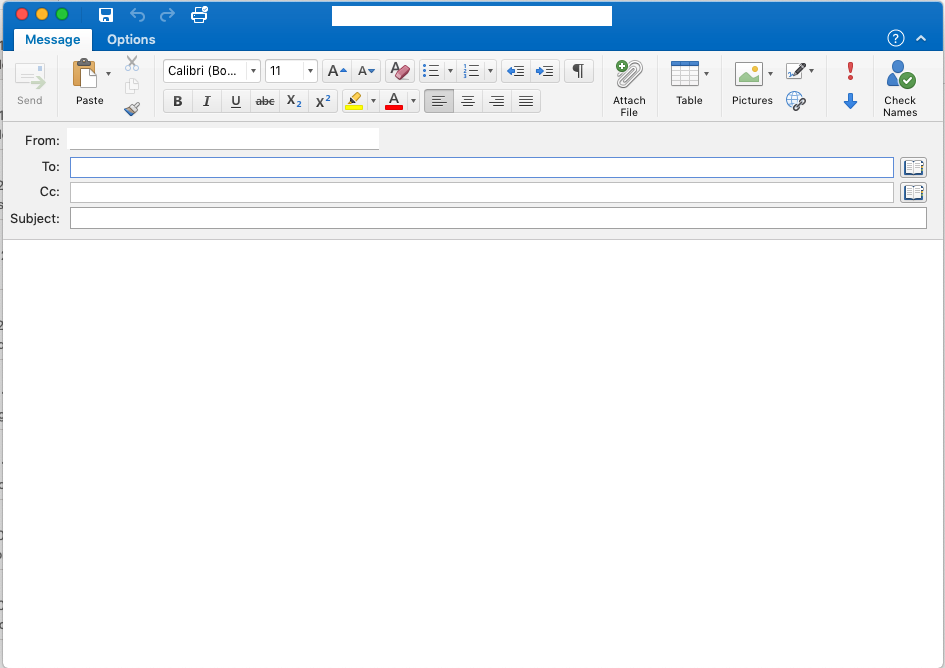
Here is the compose window in a new email:
Screen Shot 2018-11-20 at 1.28.18 pm
New Email Outlook 2019

It's all pretty much the same, but you can see a more clean approach has been taken with the newer applications. I like it. I don't like Outlook as a rule, but I like this version of it better than previous versions.
The proof is in the utility - and both versions of Office are very useful. I'm still bewildered at times by the array of things you can do in Excel - it's one very full featured piece of software, and I probably will never use all of the stuff even in Word - which is probably why my preference is a simpler text editor like Pages.

Here's a snippet from Excel and you'll note that next to the green "Maximise" button in the top left hand corner is what looks like a little notebook - this is the File menu where new file etc all live:

Screen Shot 2018-11-20 at 1.40.39 pm
Excel 2019

Again it's a slightly cleaner interface than 2016, but everything is there. With all the "File" activities hidden in that new button, there's nothing really missed out on. An Excel aficionado will probably say there are a million things not there but I'm not that guy.

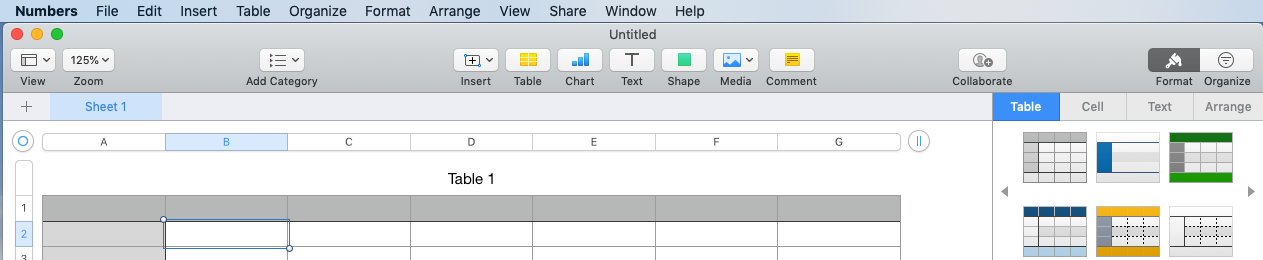
Compare that ribbon to the Numbers ribbon:
Screen Shot 2018-11-20 at 1.43.37 pm
The simplicity of Numbers


It's a big UI (User Interface) difference. Given the rather limited activities I execute in spreadsheets, either one is suitable for my needs. I know that Numbers isn't adequate for some of the guys here at work who use Excel in extraordinary ways, but for the regular punter I think you'll find Numbers to be adequate.
At any rate, I thought you might find this interesting to see a brief comparison between the versions of Office and how different they look on different OS platforms. I can only hope that Microsoft release a version for Linux and I'll compare that one too!
I've cross posted this to my regular blogging account, so if you're interested in my wider range of thoughts check it out: abeath.blog

Wednesday, 25 January 2017

3 Word Processors compared - Microsoft Word, Apple Pages and Google Docs

In the course of work and university I've been jumping a bit between Word, Pages and Docs for various reasons. I thought it might be useful to compare them. Let's start.

Price


  • Google Docs is included either in a free Gmail account or G-Suite. Its available for free on your mobile device with native apps on iOS and Android
  • Pages is $30.99 and can be found in the Apple Store. It's included in iOS on the iPhone or iPad
  • Word is part of the Microsoft Office Suite. The cheapest of which is Office365 Personal (for Mac) which is $89 inc GST per year (See the Microsoft Office pricing page here). Includes a licence for a single mobile device
On price Docs is the obvious winner. Free to get access to and solid support on mobile devices. 

Usability

All three of these applications are very useable - but which one is *most* usable? Google Docs is a clean, uncluttered interface with relatively few options available:


Simple and uncluttered with everything there and looking like every single other word processor through history.

Pages has a different take on it, and one that can be a bit confusing to begin with.

The sidebar gets added into the mix, and many controls are moved out of the top menu and into here. I don't mind this personally, but I do find on the MacBook that I dislike losing the screen real estate to this menu. It is functional though.

Word has the infamous "ribbon". This is the Office365 version of it:

Since Microsoft changed the menu titles back to being in regular capitals / lower case, the readability of these menus has improved immensely. I remember when the ribbon came out and people loathed it. It just is now and I find it to be quite useful. The drawback for me with Microsoft Word is the sheer number of options available. We are spoiled for choice, control and capabilities and it can be overwhelming at times.

The usability winner is a totally individual choice and I leave it up to you to decide. Personally I like Pages but I'm ok getting around all three.

Functionality

This is a big one to consider. Word has clearly got it all (and most users will touch about 10% of it's capabilities day to day). Pages is likewise heavy on features and Docs comes in last, with its smaller range of functions. I think because Docs is web based then it was forced into more simplistic functionality and Google had to really choose the key word processing capabilities to include.

There is one function that stands Word out from Pages though in these heavy hitters. The ability to have a section in landscape, while the rest of the document is in portrait is not available in Pages (that I could find). Now most people probably won't care about this overly, but for me, if I'm inserting a large landscape graphic or big table it is critical and stupid Pages won't do it. Very frustrating. I've never really tried it in Docs, but a 3 second Google search shows it's not possible. Word wins for this!

All three offerings have Table of Content, header, footer, page numbers, insert stuff blah blah - you get the drift. All the basics and day-to-day stuff is there, and its only the more advanced activities where they are differentiated.

Aesthetics

Which one is the prettiest? A very subjective question of course. It should be noted that Apple have spent a lot of time on fonts and appearance, but so have Google and Microsoft (they just aren't as talked about). This is up to you - but I rank them Pages, Docs, and Word. Word is a bit busy for me - lots going on and when I'm working on an assignment or report I need clarity. Docs is very good for this, but something about the Pages appearance appeals to me.

Things to note about the different applications

Pages is Apple centric - don't bother looking for it on anything that doesn't have the Apple logo. That being said, it integrates very well with iCloud and syncs to your mobile device quite happily. 

Word is starting to become ubiquitous everywhere - Microsoft have released Office365 in a web browser, it's installable and available as an app on most mobile devices. The experience is the same across them all and really is improving.

Google Docs is maturing constantly and more features are being added frequently. For collaboration it is King. See updates and writing by other people in almost real time and easily give various levels of access to documents. For working with colleagues Docs is the best - Pages and Word are not in the same realm.

Tuesday, 9 August 2016

Guidelines on purchasing a new laptop

Recently a friend asked me for advice on purchasing a new laptop. Here is the bulk of the email I sent him - perhaps you'll find it useful as you search for a new computer:

There is a lot of stuff on the market and here are some basic, ground rules for what you need to think about when your purchasing:
  • set a budget figure for the new machine and stick to it. I usually drop at least $200 below my actual budget so I can include a new laptop bag or some sort of accessory (I love gadgets!)
  • Decide how big you want the laptop to be - i.e. are you travelling? If so, then a 17" notebook is going to be very heavy and cumbersome and you'll hate dragging it through the airport all the time. Are you doing complex work with a lot of information on it? If son, then an 11" notebook will probably be too small. Usually I suggest an 13" or if you are doing a lot of complex work, then a 15" is probably acceptable - although these can be heavy
  • Are you more comfortable with Mac OS X or a Windows based operating system - this step can easily eliminate a large number of machines
  • Extra warranty can be handy - see if you can get 3 years worth of it as this is the usual lifespan of a notebook before it needs a refresh or you've broken it. 
  • How much data will the laptop hold? How much does your current one hold? Are you going to be saving all your photos and videos to it?
A few notes on specifications and what they mean:
  • SSD - solid stat disk: These replaced the old mechanical hard drives in many notebooks. They are faster, have no moving parts so don't get damaged if you drop the laptop inadvertently. Downside is - they are smaller and more expensive :(
  • RAM - system memory: more is better but 4GB of RAM is typically enough for most day to day computing activities. If you're a gamer, get more.
  • Core i3, i5 and i7: these refer to the processor and it's type. i3 is aimed at general day to day work, i5 for harder work and maybe a bit of gaming and i7 for high end work and gaming. I prefer i3's for general office type work and find them to be fast enough for anything in a normal office environment, including most finance packages. For my general work in IT I have i5's everywhere - a solid compromise between cost and power without huge amounts of heat generation. And for my gaming rig, and my high end workstation running multiple virtual machines and doing heavy lifting (in a geeky way) I've got the big i7 on my desk. It takes a heap of power and was quite expensive.
A few notes on differences between Mac and PC
  • The Apple (Mac) environment is all locked up and proprietary. This is good and bad. Good because 99% of the time the software just works and the upgrade to new operating systems (like El Capitan) is free. Generally the upgrade is also pain free and just works. The bad news is, you're locked into the Apple way of doing things on your computer. There are ways to get around this - using Parallels or another virtualisation platform to run Windows and associated software, but this can be expensive in terms of cost for software (Parallels plus a Windows Licence) and expensive in terms of hardware utilisation. Generally though, the Macs on the market at the moment can well and truly handle it. The Mac will run Microsoft Office, or Apple have their own software - Pages / Numbers / Keynote.
  • PCs typically will run Microsoft Windows and at the moment, they're all coming out with Windows 10. Love it or hate it - that's what you get. Lots of applications, lots of viruses and vulnerabilities. Without a fair bit of work you can't get Mac OS X to run on a PC. Generally you can get a fairly well specced PC for a lot less than a Mac.
Finally, consider carefully what you'll use this computer for, then try to match the laptops you can get in your price range to those requirements. Most people will also look at which one is prettiest and which has the keyboard they prefer. These are important factors to consider so try to get eyes and hands on a machine before you buy.

Wednesday, 10 October 2007

Update to: Resurrection of a G4 and other observations

I had intended to publish the previous post last night, but didn't get around to it. I've hit a bit of a snag with the OpenSuSE 10.3 installation and ran out of time last night to fix it. Two things are failing.

No.1 the PowerEdge server I have has a dodgy DVD reader in it and won't read the 10.3 DVD properly. I checked the DVD for its integrity and all is well with it. I'll need to put another DVD reader into the machine to get it to install I think. While I'm there I think I'll also replace the noisy fan it has at the rear. I can't hear the disks over it and there is no outward indication of any activity which bothers me.

No.2 I tried to install 10.3 on my AMD clone PC last night too. It has a 200GB SATA disk in it (can't remember the exact size) and OpenSuSE failed to detect it. WTF? It's not like I have a unique mainboard - it's a fairly standard ASUS board with nothing special about it. This machine ran Ubuntu there for a while and had no problems with the detection - but OpenSuSE has no idea about the disk. For a new OS version I was extremely unimpressed. I'll issue one caveat though - I have Vista installed on this disk and I'm not sure if that will screw things up or not. I'll investigate at my leisure (read: who knows when).

Happily my G4 is still running although seems unhappy to boot from the OSX partition unless I hold down the Option key on boot. I changed the boot drive (again) and forced a restart to see if it fixed anything. It booted properly (which was good) and also quite quickly (also a good thing). Currently the machine is in a suspended state but I'll test it again tonight and see what the results are.

Tomorrow (hopefully) a post about something non-technical.

Resurrection of a G4 and other observations

My G4 mac has been sitting idle for some time now complaining of no working hard drive. I of course knew this to be a lie as the disk I put in the system was a good one and I thoroughly scanned and tested it before putting it in my beloved G4. After a fair bit of swearing I booted it holding the Option key down. I probably should note that despite my fairly extensive experience with windows and linux I have preciously little with OSX and with Apples in general. I'm amazed for example how good the BIOS seems to be. I can just plug any old USB DVD into this machine and wee! It detects it and off we go. Very cool. On a similar age PC you'd be lucky to have that kind of functionality available.

So at any rate I'm currently typing this on my G4 - it's quite responsive, now it has 868MB of RAM (I know - its a weird number). The reason I'm using this machine and not my equally beloved L400 is just for variety sakes. I have a number of machines available at home. They include a GX270 (currently at my dear girl's home), two GX260 slimline Dell PCs (one is my gateway, the other my linux box at work), a Dell PowerEdge 1400SC Server that houses all my... uh.. content and runs SuSE 10.2 (hopefully upgrading to 10.3 in a matter of hours), my L400 notebook running an amazingly quick Windows XP install, two generic PCs, one with an AMD processor, the other (my games machine) running a dual core Intel setup and finally my two Apples - my G4 and my G3 iMac, both running OSX. My generic PCs run Vista and XP respectively, although I hope to do a dual boot of Vista and SuSE 10.3 set up tonight (and then blog about it later).

The PowerEdge is a noisy machine and sometimes I wonder the amount of power it's pulling. I have no doubt it's a fair bit so I tend not to run it all that often . It was incredibly noisy with the two 9GB SCSI disks that came with it. Needless to say I replaced them with IDE Disks and an IDE RAID controller fairly quickly. I should probably get some bigger disks into it, but really it holds a back up of various documents and the like so nothing too big. SuSE 10.2 was a breeze to install on the machine as well. It correctly identified the IDE RAID card, found my pre-created RAID arrays (unlike Ubuntu) and then proceeded to install in quite an impressive fashion. I love Yast2. What can I say? It's a highly polished interface into much of the system and I think it's excellent. I found it very easy to change the system to boot into multi-user without X and set up firewalling and various other bits and pieces. Quite handy really.

Thursday, 2 August 2007

Linux on the Desktop

I read a fair few reviews about running Linux on the desktop. One of the things that always springs to my attention is people moaning about hardware support. All things considered, I have an opinion about this.

My XP Installation at home does not work without significant time spent downloading (after I've installed a driver for the network card) drivers for sound/video/mainboard stuff. I have an ASUS mainboard, nothing fancy or special. It does not work natively with the drivers supplied with XP. It does, however, work just fine with Linux, specifically Ubuntu, but also SuSE. I run Ubuntu on a series of machines, including two Dell GX260's, a GX270, a Dell Server (the name of which escapes me) and various put together machines. I find fewer issues with drivers than I have had with XP. Don't even get me started on Vista. It's hardware support might be better, but you've got to have a *lot* more of everything to get it to work properly. Drivers for my printer - a HP 1022, were only released a little while ago for Vista. Ubuntu chatted away happily to said printer straight away.

As to usability, well I'm a little bit of a geek so I have no problems with it. I decided to test it on my girlfriend. Yes, I took my life in my own hands with this experiment. She loves it though. She likes all the games, can work the office software and everything else. She plugs in her Kensington USB key and it works fine. I'm about to add her to my wireless network with a Belkin wireless card - we'll see how that goes. But she has no problems working the machine. It's not a crappy machine either, an AMD 2200+ with lots of RAM and decent innards. Oh and an ASUS mainboard that XP required special drivers for.

When people talk about GNU/Linux being ready for the desktop, I'd like to point out that Windows isn't really ready for the desktop either. How many businesses etc are now saying No to the migration to Vista? Lots is the answer to that - check out on doggdot.us to see how many of the articles reflect the lack of interest in the upgrade path. I've been running Vista on a Dell GX270 and a Latitude D620 and so far, I'm a bit meh about the whole thing. Sure it's pretty and stuff. The low power gear is alright, but honestly? It's slower than XP and a *lot* slower than Ubuntu.

In terms of interoperability, I've got no trouble making my Windows machines talk to my Linux boxen or to my two Macs running OSX. There are lots of guides out there and they make it easy to get things working properly. I say "Bah!" to those who suggest Linux isn't ready for the desktop. I also reckon that in the future we'll see more of a move to an operating system that has open standards for longevity purposes.

Omarchy - the new darling of the Linux world

 Omarchy is the buzzword at the moment, with it turning up on Network Chuck's YouTube channel. I came across it via DHH's blog post ...


